
Quick answer: IPTV Smarters Pro is a free IPTV player app for Android, Fire TV, iPhone, iPad, Apple TV, Windows and Mac. To use it in the UK you install the app, choose Login with Xtream Codes API, enter the server URL, username and password from your IPTV provider, and the live channels, EPG and on-demand library load automatically. Most UK users are watching within five minutes, and the same login works on every device covered by your plan.
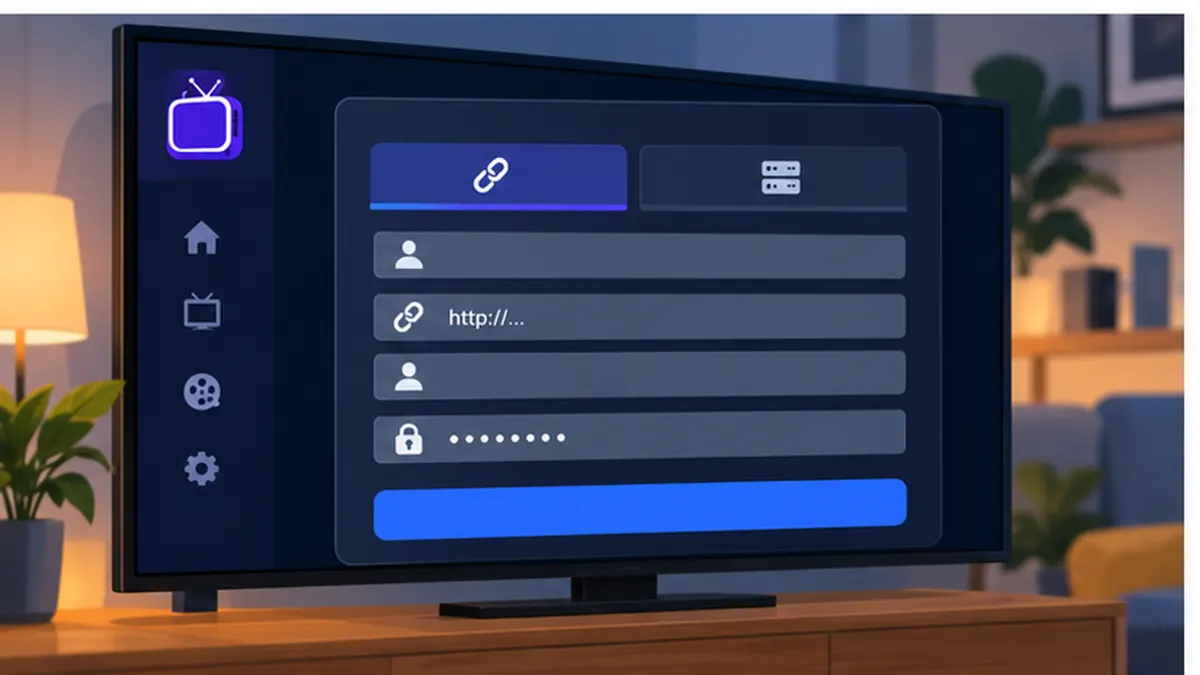
Table of Contents
What is IPTV Smarters Pro?
IPTV Smarters Pro is one of the most widely used IPTV player apps in the UK. It is developed by WHMCS Smarters and is designed to connect to any provider that uses the Xtream Codes API or a standard M3U playlist. The app itself contains no channels; it is a player that organises whatever your subscription delivers into live TV, movies, series and catch-up sections with a familiar, remote-friendly interface.
There are several versions in circulation. IPTV Smarters Pro is the full app for Android, Fire TV and desktop. IPTV Smarters Player and Smarters Player Lite are the versions published for iOS and some official app stores where the Pro branding is not available. All of them share the same login flow and most of the same settings, so this guide applies to each.
For UK viewers the appeal of IPTV Smarters is its balance of simplicity and features. It supports multiple user profiles, a full seven-day EPG, catch-up (where the provider offers it), parental controls, a built-in multi-screen mode and external players such as VLC or MX Player. It also works well on cheaper hardware, which makes it a good match for a Fire TV Stick or an older Android box. If you are new to the technology, our IPTV UK guide explains the basics before you install anything.
Where to download IPTV Smarters in the UK
Because app store policies change, the exact download route depends on your device. The table below shows the current options UK customers use most. When in doubt, use the official developer site, whmcssmarters.com, which publishes the latest download links.
| Device | Where to get IPTV Smarters | Notes |
|---|---|---|
| Android phone / tablet | Official site APK or Google Play (Smarters Player Lite) | Enable installs from unknown sources for the APK |
| Android TV / Google TV | Official APK via Downloader app, or Play Store where listed | See our Android TV guide |
| Amazon Fire TV Stick | Downloader app with the official APK link | Turn on Apps from Unknown Sources first |
| iPhone / iPad | App Store: IPTV Smarters Player or Smarters Player Lite | Same login, slightly simpler interface |
| Apple TV | App Store: Smarters Player Lite | Enter details with the Siri Remote or iPhone keyboard |
| Windows / Mac | Desktop installer from the official site | Good for a study or office PC |
| Samsung / LG smart TV | Not available natively | Use Smart IPTV, SS IPTV or a Fire TV Stick instead |
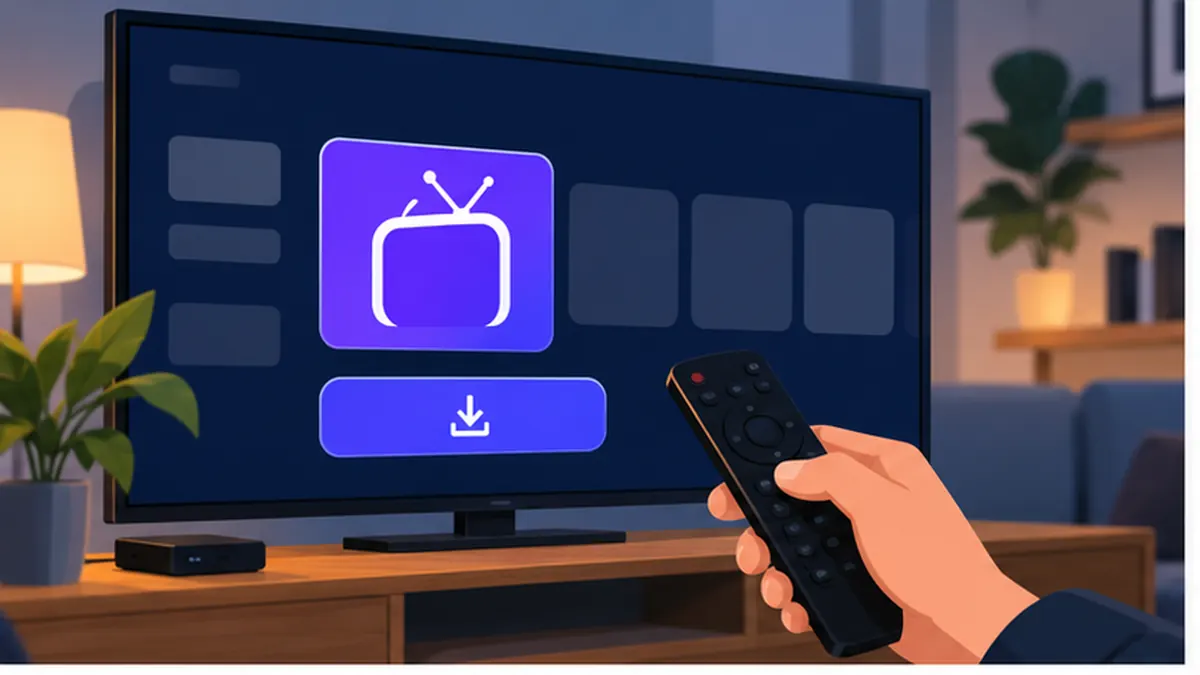
Two warnings before you download. First, only use the official developer site or an official app store. Copies of IPTV Smarters hosted on random APK sites are sometimes modified and can contain adware. Second, the app is free; if a website asks you to pay for IPTV Smarters itself, it is not the official source. Your only cost should be your IPTV subscription, which you can test first with a free IPTV trial.
How to log in to IPTV Smarters with Xtream Codes
Xtream Codes API is the recommended way to log in to IPTV Smarters because it delivers the channel list, EPG and video-on-demand catalogue in one step. Your provider sends three pieces of information: a server URL (sometimes called host or portal), a username and a password. SmartVPro UK includes these with every IPTV plan.
- Open IPTV Smarters and accept the terms screen.
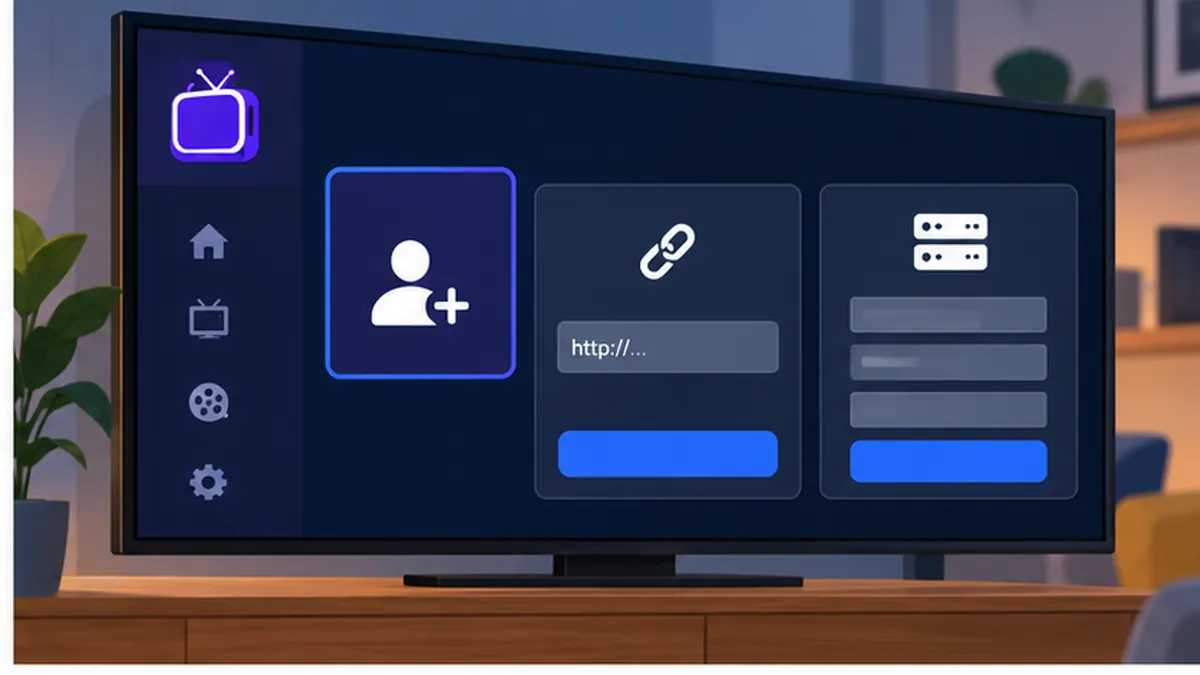
- Tap Add New User (on first launch this may appear as Add User).
- Choose Login with Xtream Codes API.
- Enter any name you like in the Any Name field, for example “Lounge” or “Dad”.
- Type the Username and Password exactly as supplied. They are case-sensitive.
- Paste the Server URL, including http:// or https:// and the port number if one is given.
- Tap Add User. The app downloads the channel list and EPG; on a large playlist this can take up to a minute.
- Select Live TV to browse channels by category, or Movies and Series for on-demand content.
If the login fails, do not retype everything from scratch. Copy and paste the details from your welcome email where the device allows it, and check the three most common mistakes: a space at the end of the password, a missing port number in the server URL, and a username typed in the wrong case. The troubleshooting section below covers the rest.
Logging in with an M3U playlist instead
The app also accepts an M3U URL or a local M3U file. Choose Load Your Playlist or File/URL, pick M3U URL, paste the link and give the profile a name. M3U login works, but the EPG often needs a separate XMLTV link and the on-demand sections may be less organised than with Xtream Codes, so use M3U only if your provider does not offer the API.
Best IPTV Smarters settings for UK viewers
Out of the box, the app works well, but a few settings make a noticeable difference to UK channels, the programme guide and picture stability. Open Settings from the home screen and work through these.
- Player selection: keep the built-in player for most channels. If a stream stutters, switch that channel to an external player such as VLC or MX Player from the long-press menu.
- Stream format: leave on Default (MPEG-TS) unless your provider recommends HLS. MPEG-TS gives the fastest channel changes on most UK servers.
- Time format: set to 24-hour and confirm the device time zone is Europe/London, otherwise the EPG will be an hour out after the clock change.
- EPG time shift: leave at 0 if the time zone is correct. Only adjust this if programmes consistently show the wrong time.
- Auto start: enable “Auto start on boot” on a Fire TV Stick or Android box used only for IPTV Smarters.
- Parental control: set a PIN and lock adult categories if children use the device.
- Buffer size: in the external player settings, a slightly larger buffer helps on Wi-Fi connections at the cost of a second or two of delay.
Stream quality is set by your provider rather than by the app, but the app does show the bitrate and resolution of the current stream if you press the info button. For a stable HD stream you need roughly 10 to 16 Mbps; our internet speed for IPTV guide explains how to check your line and improve Wi-Fi.
Using the EPG and catch-up in IPTV Smarters
The app shows the EPG in two places: a mini guide below the player when you tap a channel, and a full grid view from the EPG button on the home screen. With Xtream Codes the guide loads automatically. If it is empty, open Settings, choose EPG and tap Refresh; if you logged in with M3U, add your provider’s XMLTV link in the same screen. For a deeper walkthrough see our IPTV EPG guide.
Catch-up (also called TV archive) appears as a clock or replay icon next to channels that support it. The app lists the previous days’ programmes so you can play them on demand. Whether catch-up is available depends on your provider, not on the app; SmartVPro UK plans state clearly which channels include it.
Multi-screen and multiple profiles in IPTV Smarters
One of the features that sets IPTV Smarters apart is Multi-Screen, which splits the display into two or four windows so you can follow several matches at once. Each window counts as a separate stream, so a four-window view on a plan with two connections will not work. Check the connection allowance on your plan, and read our multi-device IPTV guide if you want to share one subscription across the house.
The app also supports several user profiles on one device. This is handy if you have more than one subscription, or if you want a separate profile with parental controls for the children’s room. Switch between them from the Users menu on the home screen.
IPTV Smarters on a Fire TV Stick: the Downloader method
The Fire TV Stick is the most popular device for the app in the UK. Because the app is not in Amazon’s store, you sideload it with the free Downloader app. The process takes about five minutes.
- On the Fire TV, go to Settings > My Fire TV > Developer Options and enable Apps from Unknown Sources. On newer firmware, this is set per app under Install unknown apps. Amazon explains the setting in its Fire TV developer documentation.
- Install Downloader from the Amazon Appstore.
- Open Downloader and enter the APK link published on the official IPTV Smarters website.
- When the download finishes, choose Install, then Done and delete the APK to free space.
- Launch IPTV Smarters from Your Apps & Channels and log in with Xtream Codes as described above.
If Developer Options is hidden on your Fire TV, go to Settings > My Fire TV > About and press the Fire TV Stick entry seven times to reveal it.
IPTV Smarters on Android TV, iPhone, iPad and Apple TV
On Android TV and Google TV the steps mirror the Fire TV method, using Downloader or a file manager to install the official APK. Some Google TV devices list Smarters Player Lite directly in the Play Store, which avoids sideloading altogether. We cover TiviMate and IPTV Smarters side by side in the Android TV IPTV setup guide.
On Apple devices, search the App Store for IPTV Smarters Player or Smarters Player Lite. The iOS version has a cleaner interface and supports AirPlay, so you can send a channel from an iPhone to an Apple TV or AirPlay-compatible television. Our Apple TV and iPhone IPTV guide walks through the setup, including typing the login details with the iPhone keyboard instead of the Siri Remote.
Fix: IPTV Smarters login failed or invalid details
“Login failed”, “Invalid username or password” and “Could not connect to server” are the three errors we see most often. Work through this checklist in order.
- Check the server URL. It must include the protocol (http:// or https://) and, where supplied, the port (for example :8080). A missing port is the single most common cause.
- Check case and spacing. Usernames and passwords are case-sensitive and must not have trailing spaces.
- Confirm the subscription is active. An expired plan returns the same error as a wrong password. Log in to your account area or contact support.
- Check the connection limit. If every allowed device is already streaming, a new login may be refused until one stops.
- Try another network. Some workplace or public Wi-Fi networks block streaming ports. Test on mobile data to rule this out.
- Update IPTV Smarters. Old versions occasionally fail against updated servers. Install the latest build from the official site.
Fix: channels not loading, buffering, black screen and other problems
Channels show but will not play
Long-press the channel and choose a different player (VLC or MX Player). If every channel fails, switch the stream format between MPEG-TS and HLS in Settings. If only a handful fail, the streams themselves are the issue; report them to your provider.
Buffering every few seconds
Buffering in the app is almost always a local network issue. Move to a wired connection or 5 GHz Wi-Fi, restart the router and close other apps that use bandwidth. A VPN can also cause buffering by routing traffic through a distant server; our IPTV VPN guide explains when a VPN helps and when it hurts.
EPG missing or wrong times
Refresh the EPG in Settings, check the time zone is Europe/London and set EPG time shift to 0. With M3U logins, add the XMLTV link. If the guide is still empty after a refresh, the provider’s EPG source may be updating; try again in an hour.
App crashes or freezes on launch
Clear the app cache from the device’s app settings, then reopen. On a Fire TV Stick with limited storage, uninstall unused apps. If the crash persists, remove and reinstall the app, then log in again.
No sound or wrong language
During playback, open the audio track menu and select the English track. If a Dolby track plays silently on a stick connected to an older TV, pick the stereo track or enable audio passthrough in the external player settings.
Black screen with sound
This usually means the device cannot decode the stream’s video codec in hardware. Switch the decoder to software in the player settings, or use VLC as the external player.
Favourites, categories and remote shortcuts
A playlist of several thousand channels is only useful if you can find the ones you watch. Long-press any channel and choose Add to Favourites; the Favourites category then appears at the top of the Live TV list. Most UK households end up with a favourites list of 20 to 40 channels covering news, sport, entertainment and children’s programming, and never scroll the full list again.
Categories can also be hidden. Open the category list, press the menu button on the remote and untick the groups you never use, such as foreign-language packages. Hiding categories does not delete anything; it simply keeps the interface tidy and speeds up navigation on slower sticks.
On a Fire TV or Android TV remote, the fast-forward and rewind buttons skip through the EPG, the menu button opens the channel options and holding the select button on a live channel opens the audio and subtitle menu. Learning these three shortcuts removes most of the fiddling that puts people off a new player.
Picture quality: HD, 4K and HDR
The resolution you see depends on three things: the stream your provider sends, the device decoding it and the television. A 4K stream on a first-generation Fire TV Stick will be downscaled or will stutter, because the hardware cannot decode HEVC at that bitrate. A Fire TV Stick 4K, a Google TV Streamer or a recent Android box handles the same stream comfortably.
HDR passthrough works when the device, the HDMI cable and the TV all support it. If colours look washed out on a 4K channel, check that the device display settings are set to match the content rather than forcing a fixed output mode. Where a channel is offered in both HD and 4K, start with HD on Wi-Fi and move to 4K once you have confirmed the connection is stable.
Using an external player: VLC or MX Player
The built-in player handles the majority of streams, but some codecs and some audio formats play better in a dedicated player. Install VLC or MX Player from the app store, then in Settings choose it as the external player. You can set it globally or per channel from the long-press menu. VLC tends to be the more tolerant of unusual streams; MX Player offers finer control over hardware and software decoding.
A useful habit is to keep the built-in player as the default and switch only the handful of channels that misbehave. That way, channel changes stay fast and you only pay the slower start-up time of an external player where it is needed.
Account security and privacy tips
- Treat your Xtream Codes login like any other password. Do not post it in forums or share screenshots that show the server URL.
- Use a separate profile for guests or children rather than handing over the main login.
- If you suspect your details have been shared, ask your provider to reset the password; the app will prompt you to log in again on each device.
- Keep the device operating system updated. Streaming sticks receive security patches that also improve app stability.
- Be cautious of pop-ups inside unofficial builds of any IPTV player; the official app does not show advertisements.
Windows and Mac setup
The desktop versions are handy for a home office, a student room or a second screen during big sporting weekends. Download the installer from the official developer site, run it and log in with the same Xtream Codes details. The desktop interface mirrors the TV layout, supports keyboard shortcuts for channel changes and volume, and can be set to open in full-screen mode. Because a laptop usually sits closer to the router, it is also a convenient way to confirm whether a buffering problem is caused by the Wi-Fi reach to the lounge rather than by the stream itself.
IPTV Smarters vs TiviMate vs Smart IPTV
IPTV Smarters is not the only option, and the right app depends on your device and how you watch. Here is how it compares with the two other players UK customers ask us about most.
| Feature | IPTV Smarters Pro | TiviMate | Smart IPTV (SIPTV) |
|---|---|---|---|
| Price | Free | Free, premium for recording and multi-playlist | Small one-off fee |
| Devices | Android, Fire TV, iOS, Apple TV, Windows, Mac | Android TV, Fire TV only | Samsung, LG, Android TV |
| Login method | Xtream Codes or M3U | Xtream Codes or M3U | M3U via MAC upload |
| EPG | Good, seven days | Excellent, best grid view | Good |
| Catch-up | Yes | Yes | Limited |
| Recording | Yes on Android with storage | Premium only | No |
| Multi-screen | Yes, built in | No | No |
| Best for | All-round, mixed devices | Fire TV and Android TV power users | Samsung and LG smart TVs |
Our recommendation: if your household mixes phones, tablets, a Fire TV Stick and an Apple TV, Smarters is the easiest app to standardise on because the login and the interface are the same everywhere. If you only watch on one Android TV box and want the best possible guide, TiviMate edges ahead. If you have a Samsung or LG set and no stick, see our Smart TV IPTV guide.
Is IPTV Smarters legal in the UK?
The IPTV Smarters app is legal. It is a media player, in the same category as VLC or Kodi, and it is distributed openly by its developer. What matters legally is the content you stream through it. Using the app with a service that has the rights to its channels is lawful; using it to access streams that infringe copyright is not, and UK bodies including FACT and Trading Standards have pursued both sellers and users of infringing services.
We are not lawyers and this guide is not legal advice or a guarantee about any service. For the UK legal position, including the Copyright, Designs and Patents Act 1988 on legislation.gov.uk and Ofcom’s role as regulator, read our full guide Is IPTV legal in the UK?. SmartVPro UK is a brand of THE SHORT BOX ENTERTAINMENT LLC; our terms and correspondence address are published on this site.
Using IPTV Smarters outside the UK
The app behaves identically wherever you are, so if you travel or live between countries the steps in this guide still apply. The difference is the provider and the channel line-up. Canadian viewers can follow the same login process with iptvv-ca.ca, viewers in the Netherlands with dutchiptvnl.net, and international customers with smartvpro.com. If you want to keep your UK channels while abroad, a VPN set to a UK server can help; see the VPN guide linked above for the caveats.
Official resources
- WHMCS Smarters — the developer of IPTV Smarters Pro, with official download links and documentation.
- Amazon Fire TV developer documentation — how sideloading and unknown sources work on Fire TV.
- Ofcom — the UK communications regulator.
- Copyright, Designs and Patents Act 1988 — primary UK copyright legislation.
IPTV Smarters: frequently asked questions
Is IPTV Smarters Pro free?
Yes. IPTV Smarters Pro and the Player Lite versions are free to download from the developer and official app stores. You pay only for your IPTV subscription. Any site charging for the app itself is not the official source.
Why is IPTV Smarters not on Google Play or the Amazon Appstore?
Store policies on IPTV players change frequently. The Pro version is distributed as an APK from the developer’s site, while lighter versions such as Smarters Player Lite appear in some stores. On Fire TV, use the Downloader app to install it.
What is the difference between Xtream Codes and M3U in IPTV Smarters?
Xtream Codes API uses a server URL, username and password and delivers live TV, EPG and on-demand in one login. M3U uses a single playlist link and usually needs a separate EPG link. Use Xtream Codes where your provider offers it.
Can I use IPTV Smarters on a Samsung or LG smart TV?
Not natively; IPTV Smarters is not in the Samsung or LG app stores. Use Smart IPTV or SS IPTV on those TVs, or plug in a Fire TV Stick and install IPTV Smarters on that.
How many devices can I use with one IPTV Smarters login?
You can install the app on as many devices as you like, but the number that can stream at the same time is set by your subscription’s connection limit, not by the app.
Why does my EPG show the wrong time?
Check that the device time zone is set to Europe/London and that EPG time shift is 0. After the clocks change in March and October, a device with a manual time zone can drift by an hour.
Does IPTV Smarters support recording?
On Android devices with storage, the app can record live channels. On iOS and Fire TV the option is limited or unavailable. TiviMate Premium is the stronger choice if recording is important to you.
Is it safe to download IPTV Smarters from APK sites?
We do not recommend it. Third-party APK mirrors sometimes host modified builds. Always download from the official developer website or an official app store.
Get started with IPTV Smarters today
Install the app on your preferred device, request a free IPTV trial to receive Xtream Codes details, and log in using the steps above. When you are happy with the channels and the EPG, choose an IPTV plan that matches the number of screens in your home. Our support team can help with any login or playback problem that this guide does not solve.
Get the next IPTV guide by email
New setup guides, app comparisons and buffering fixes for UK viewers – about two emails a month, no spam, unsubscribe in one click.