
Quick answer: Android TV IPTV setup takes about ten minutes. Install an IPTV player such as TiviMate, IPTV Smarters Pro or OTT Navigator from the Google Play Store on your Android TV or Google TV device, enter the Xtream Codes login or M3U playlist link from your provider, and your live channels, EPG and on-demand library appear. This works on Google TV Streamer, Chromecast with Google TV, Nvidia Shield, and Sony, TCL, Philips and Hisense televisions running Android TV.
Table of Contents
What is Android TV IPTV and which devices support it?
Android TV is Google’s operating system for televisions and streaming devices, and Google TV is the newer interface that runs on top of it. Both give you access to the Google Play Store, which is why Android TV IPTV is the most flexible way to watch IPTV in the UK: you can choose from a dozen high-quality player apps rather than the handful available on Samsung or LG sets.
The platform appears in two forms. Dedicated streaming devices include the Google TV Streamer, the older Chromecast with Google TV, the Nvidia Shield TV and a range of Android boxes from brands such as Xiaomi and Mecool. Built-in versions ship inside televisions from Sony (Bravia), TCL, Philips, Hisense (selected models), Sharp and others. The Android TV IPTV steps in this guide are the same for all of them.
If you are not sure what your TV runs, press the Home button. A row of app icons with a Google Play Store entry means you have Android TV or Google TV. A Samsung or LG home screen means Tizen or webOS, and you should follow our Smart TV IPTV guide instead. Our IPTV UK overview explains how the service works before you install anything.
Best Android TV IPTV apps in 2026
All of these apps are free to install and work with the Xtream Codes details or M3U link supplied with a SmartVPro UK subscription. The differences are in the interface, the EPG and the extras.
| App | Price | Login | Strengths | Weaknesses |
|---|---|---|---|---|
| TiviMate | Free; Premium for recording, multiple playlists | Xtream or M3U | Best EPG grid, fast, polished | Android TV only, premium needed for extras |
| IPTV Smarters Pro | Free | Xtream or M3U | Multi-screen, catch-up, same app on phones | Interface is busier |
| OTT Navigator | Free; Premium unlock | Xtream or M3U | Deep customisation, picture-in-picture | Steeper learning curve |
| Televizo | Free; Premium unlock | Xtream or M3U | Lightweight, good on slow boxes | Fewer features |
| Sparkle TV | Free | Xtream or M3U | Clean design, quick setup | Newer, smaller community |
For most UK households we suggest starting Android TV IPTV with TiviMate. Its guide view is the best on any platform and it handles 3,000-channel playlists without slowing down. If you also watch on an iPhone or a Fire TV Stick and want the same interface everywhere, IPTV Smarters Pro is the better choice; see our IPTV Smarters guide for that app in detail.
What you need before you start
- An Android TV or Google TV device connected to the internet and signed in to a Google account (needed for the Play Store).
- Your subscription details: Xtream Codes server URL, username and password, or an M3U link. You can get these instantly with a free IPTV trial.
- A stable connection: 25 Mbps or more, ideally over Ethernet or 5 GHz Wi-Fi. See our internet speed for IPTV guide.
- Optional: a phone with the Google TV app, which lets you type login details with a proper keyboard instead of the remote.
Android TV IPTV setup with TiviMate (step by step)
- Press Home, open the Google Play Store and search for TiviMate. Select Install.
- Open TiviMate and choose Add playlist.
- Select Xtream Codes login (recommended) or M3U playlist.
- Enter the server URL, username and password exactly as supplied. Press Next.
- Give the playlist a name, such as “SmartVPro”, and confirm. TiviMate downloads the channel list and EPG; allow a minute for large playlists.
- Choose Done. The live guide opens with your channels grouped by category.
- Press the Settings cog to adjust the EPG, player and appearance options described below.
Android TV IPTV setup with IPTV Smarters Pro
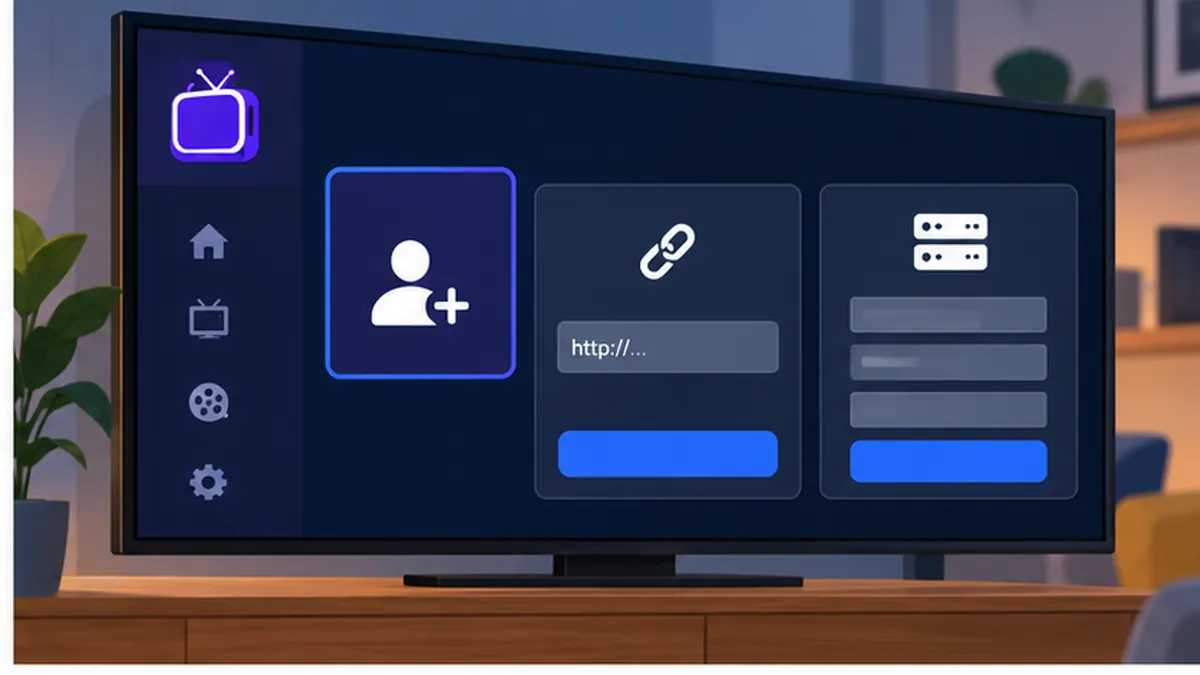
Install IPTV Smarters Pro or Smarters Player Lite from the Play Store (or sideload the official APK, see below). Open the app, choose Add New User, select Login with Xtream Codes API, enter a profile name plus your username, password and server URL, and tap Add User. The home screen then shows Live TV, Movies, Series and EPG tiles.
Android TV IPTV setup with OTT Navigator
Open OTT Navigator, go to Settings > Providers > Add provider, choose Xtream Codes, and enter the same three details. OTT Navigator lets you fine-tune almost everything, from the guide layout to the buffer, so it suits users who like to tinker.
Sideloading an IPTV app on Android TV
Occasionally an app is not listed in the Play Store for your device, or you want a specific version. Android TV IPTV apps can be sideloaded in two ways. Only ever use APK files from the developer’s official website.
- Go to Settings > Apps > Security & restrictions (or Settings > Privacy on Google TV) and allow Unknown sources for the app you will use to install.
- Install Downloader from the Play Store, open it and enter the official APK link, then choose Install.
- Alternatively, install Send Files to TV on both your phone and the TV, download the APK on the phone and send it across your home network.
- After installing, delete the APK to free space. Sideloaded apps may not appear on the home row; find them under Apps > See all apps.
Google explains the unknown sources setting in its Android TV help centre. Sideloading is normal and safe when the source is official; the risk comes from random APK mirrors that bundle adware.
Recommended Android TV IPTV settings
A few changes in the player settings make Android TV IPTV noticeably smoother, especially on Wi-Fi and on busier UK evenings.
- Decoder: start with hardware decoding. If a channel shows artefacts or a black screen, switch that channel to software decoding from the channel options.
- Buffer size: medium on Ethernet, large on Wi-Fi. A larger buffer adds a second or two of delay but reduces stuttering.
- EPG update: set to update every 12 hours and keep 7 days of guide data.
- Time zone: confirm the device is set to Europe/London so the guide matches UK schedules.
- Stream format: MPEG-TS gives the fastest zapping on most servers; use HLS only if the provider recommends it.
- Frame rate matching: enable so that 50 Hz UK broadcasts play without judder on a 60 Hz default output.
- Picture-in-picture: available in OTT Navigator and TiviMate Premium if you like to watch one channel while browsing another.
EPG, catch-up and recording on Android TV
With an Xtream Codes login, the EPG populates automatically. If the guide is empty, open the playlist settings and choose Update EPG, or add your provider’s XMLTV link if you used M3U. Our IPTV EPG guide covers the fixes in depth.
Catch-up shows as a replay icon on supported channels and lets you watch programmes from the previous days. Recording to local or USB storage is available in TiviMate Premium and OTT Navigator Premium; it is one of the main reasons people choose Android TV IPTV over a Samsung or LG app. A 64 GB USB drive stores roughly 20 hours of HD recordings.
Fixing common Android TV IPTV problems
Buffering or freezing
Switch to Ethernet or 5 GHz Wi-Fi, restart the router and increase the player buffer. On a Chromecast with Google TV, the bundled power supply can be marginal; use the official adapter rather than a TV USB port. If only one channel buffers, try an alternative feed of the same channel.
Login fails
Check that the server URL includes http:// and any port number, that the username and password are typed in the correct case with no trailing spaces, and that your subscription is active. If every device in the house is already streaming, you may have reached the connection limit of your plan.
Black screen with sound, or green and pink artefacts
These are decoder problems. Change the decoder from hardware to software for that channel, or switch the player to use ExoPlayer or VLC as an external player.
App not found in the Play Store
Some older Android TV boxes are not certified by Google and show a limited store. Sideload the official APK using the steps above. If a box is uncertified, consider replacing it with a Google TV Streamer, which solves most compatibility issues at once.
Remote lag or slow menus
Clear the cache of the IPTV app, remove unused apps and restart the device. Entry-level boxes with 1 GB of RAM struggle with large playlists; hiding unused categories helps. Hardware with at least 2 GB of RAM makes Android TV IPTV far more responsive.
Guide times are an hour out
Set the device time zone to London and disable any EPG time shift in the app. This is usually only a problem after the clocks change in March or October on devices with a manually set time zone.
Brand-specific notes: Sony, TCL, Philips and Hisense
Sony Bravia
Sony televisions have run Android TV since 2015 and Google TV since 2021. They are among the best built-in platforms for Android TV IPTV because Sony uses capable processors and keeps the software updated for several years. Enable Settings > Display & Sound > Picture > Motionflow off or on “True Cinema” for sport to avoid the soap-opera effect on live football, and turn on Auto picture mode so HDR streams switch correctly.
TCL
TCL sets are popular in the UK for value, and most models since 2019 run Android TV or Google TV. Entry-level models have less memory, so hide unused channel categories and keep only one IPTV app installed. If the Play Store refuses an install with a “device not compatible” message, update the TV firmware from Settings > About > System update and try again.
Philips
Philips televisions with Android TV benefit from Ambilight, which many viewers love for sport. Newer Philips sets have moved to Titan OS, which is not Android; check the home screen for a Play Store icon. On Android-based Philips models, the sideloading steps above work exactly as described.
Hisense
Hisense sells both Android TV models and VIDAA models in the UK. Only the Android TV versions support the full app range. If your Hisense runs VIDAA, a Google TV Streamer plugged into an HDMI port gives you the complete Android TV IPTV experience for well under £100.
Use your phone as a keyboard and remote
Typing a 40-character server URL with a directional remote is the slowest part of any setup. Install the Google TV app on your Android phone or iPhone, sign in with the same Google account, and tap the remote icon. When a text field is active on the TV, the phone keyboard appears automatically and you can paste the login details straight from your welcome email. The app also works as a backup remote if the original goes missing down the sofa.
Alternatively, a cheap USB or Bluetooth keyboard pairs with any Android TV device in seconds and is handy for the initial setup, after which you can put it away.
Organising channels: favourites, groups and parental controls
A UK playlist can contain several thousand channels, many of them in languages you do not watch. Spend ten minutes after setup organising the list and the daily experience changes completely.
- Favourites: long-press a channel and add it to favourites. TiviMate lets you create several favourite groups, for example “Sport”, “News” and “Kids”.
- Hide categories: in the playlist settings, untick the categories you never use. They are hidden, not deleted, and can be restored at any time.
- Channel order: drag channels in TiviMate to put BBC One, ITV and the main sport channels at the top of the list.
- Parental controls: set a PIN on adult categories and, if children have their own profile, hide those categories entirely.
- Reminders: most apps let you set a reminder from the EPG so the TV switches channel or notifies you when a match kicks off.
Picture quality: 4K, HDR and frame rate matching
UK broadcasts are 50 Hz, while many streaming devices default to 60 Hz output. The mismatch produces a subtle judder on camera pans that is especially visible in football. Enable frame rate matching in the device display settings (Google TV Streamer and Nvidia Shield both support it) and in the player app, so the output switches to 50 Hz for live TV.
For 4K channels, confirm the HDMI port on the television is set to enhanced or HDMI 2.0 mode and that you are using a certified high-speed cable. HDR content should trigger the HDR mode automatically; if the picture looks grey and flat, the device is probably forcing SDR output. Set the display mode to match content rather than a fixed format. Bitrates for 4K streams are typically 25 to 40 Mbps, so a wired connection is strongly recommended.
Network setup: Ethernet, mesh and powerline
Android TV IPTV depends on a consistent connection far more than on headline speed. A Google TV Streamer has an Ethernet port; a Chromecast with Google TV needs an Ethernet adapter, which costs a few pounds. If running a cable is impractical, a mesh Wi-Fi node placed in the same room as the TV, or a pair of powerline adapters, provides a stable link that a single router at the other end of the house cannot.
On the router, give the streaming device a reserved IP address and, if the router supports Quality of Service, prioritise it. Avoid the 2.4 GHz band for streaming: it is crowded in UK terraces and flats and rarely sustains an HD stream during the evening peak. Ofcom publishes practical advice on improving home broadband at ofcom.org.uk.
Keeping apps updated and backing up your settings
Turn on automatic updates in the Play Store so player apps receive bug fixes and compatibility changes. TiviMate and OTT Navigator both offer settings backup to a USB drive or cloud storage; back up after you have organised favourites and groups, so a reset or a new device does not mean starting from scratch. Keep a copy of your Xtream Codes details in a password manager rather than a screenshot in your photo library.
If you replace a device, install the same app, restore the backup and log in again. Your SmartVPro UK subscription is not tied to hardware, so moving from an old box to a new Google TV Streamer needs no action on the account side.
Android TV IPTV on match day: practical tips
Saturday afternoons and midweek European nights are when UK networks and IPTV servers are busiest. A little preparation keeps your Android TV IPTV stream stable when it matters most.
- Open the app ten minutes before kick-off and let the EPG and channel list finish loading before you tune in.
- Add two or three alternative feeds of the same channel to favourites so you can switch instantly if one feed struggles.
- Pause large downloads, cloud backups and game updates on other devices during the match.
- If you use a VPN, connect to a nearby UK server or disconnect it altogether; a distant server adds latency and buffering.
- Use multi-screen in IPTV Smarters or picture-in-picture in TiviMate Premium to follow two games, remembering each stream counts against your plan’s connection limit.
Five Android TV IPTV mistakes to avoid
- Buying an uncertified box. A £25 box with a cut-down Play Store causes endless compatibility problems. A Google TV Streamer or a certified brand avoids them.
- Streaming over 2.4 GHz Wi-Fi. It is the number one cause of buffering complaints we receive.
- Installing APKs from mirror sites. Use the Play Store or the developer’s official page only.
- Ignoring the time zone. A device set to the wrong zone makes the EPG look broken when it is not.
- Exceeding the connection limit. Count every simultaneous stream, including multi-screen windows, against your plan.
Android TV IPTV devices compared
| Device | Approx. price | Performance | Best for |
|---|---|---|---|
| Google TV Streamer | Around £99 | Excellent, 4K HDR, Ethernet port | Most households |
| Chromecast with Google TV (4K) | Around £50 | Good, Wi-Fi only without adapter | Budget 4K setup |
| Nvidia Shield TV Pro | Around £170 | Best in class, AI upscaling | Enthusiasts, recording, Plex |
| Sony Bravia / TCL / Philips TV (built in) | Included | Varies by year | No extra box needed |
| Generic Android box | £30 to £80 | Varies, often uncertified | Only if from a reputable brand |
If you buy new hardware for Android TV IPTV, the Google TV Streamer is the sensible default: it has an Ethernet port, enough memory for large playlists and receives regular updates. For a built-in Android TV set from 2020 or later, you probably need nothing extra.
Android TV IPTV vs Fire TV Stick vs Apple TV
Android TV and Amazon Fire TV share the same app ecosystem underneath, so TiviMate, IPTV Smarters and OTT Navigator run on both. Fire TV requires sideloading more often; Android TV usually has the apps in the store. Apple TV has fewer IPTV players but is extremely smooth; see our Apple TV and iPhone IPTV guide. If you want to run the same subscription across all three, our multi-device IPTV guide explains how connections are counted.
Is Android TV IPTV legal in the UK?
The hardware, the operating system and the player apps are entirely legal; they are sold and distributed by Google and listed on the Play Store. The legal question is always about the content. Watching channels that your provider is entitled to distribute is lawful; watching infringing streams is not, and FACT and Trading Standards have pursued both sellers and users of infringing services in the UK.
This guide is not legal advice and we make no guarantees about any particular service. The Copyright, Designs and Patents Act 1988 is published on legislation.gov.uk, Ofcom regulates UK communications, and our guide Is IPTV legal in the UK? explains the position in plain English. SmartVPro UK is a brand of THE SHORT BOX ENTERTAINMENT LLC; our terms and correspondence address are published on this site.
Android TV IPTV outside the UK
The setup is identical in every country because Android TV and the Play Store are global. If you are abroad, the channel line-up and provider change: Canadian viewers can use iptvv-ca.ca, viewers in the Netherlands dutchiptvnl.net, and international customers smartvpro.com. UK subscribers travelling with a Google TV Streamer in their luggage should read our IPTV VPN guide for the trade-offs of streaming through a VPN.
Official resources
- Google Android TV Help — official support for Android TV and Google TV devices.
- TiviMate official site — the developer’s own page for the app and Premium features.
- WHMCS Smarters — the developer of IPTV Smarters Pro.
- Ofcom — the UK communications regulator.
- Copyright, Designs and Patents Act 1988 — primary UK copyright legislation.
Android TV IPTV: frequently asked questions
What is the best IPTV app for Android TV?
TiviMate is the best Android TV IPTV app for most people because of its guide view and speed. IPTV Smarters Pro is the better choice if you want the same interface on phones and Fire TV, and OTT Navigator suits users who want deep customisation.
Does Android TV IPTV work on Google TV Streamer and Chromecast?
Yes. Google TV Streamer and Chromecast with Google TV run the same apps as any Android TV device. Install the player from the Play Store and log in with Xtream Codes.
Do I need to sideload apps on Android TV?
Usually not. TiviMate, OTT Navigator and Smarters Player Lite are in the Play Store on most devices. Sideload only if an app is missing from your store, and only from the developer’s official site.
Can I record live TV with Android TV IPTV?
Yes, with TiviMate Premium or OTT Navigator Premium and a USB drive or internal storage. Recording is one of the main advantages of Android TV over Samsung and LG smart TV apps.
Why does my Android TV IPTV app buffer?
Nearly always Wi-Fi. Use Ethernet or 5 GHz, increase the buffer in the app and restart the router. A weak power supply on a Chromecast can also cause drop-outs.
Is my Sony, TCL or Philips TV an Android TV?
Most Sony Bravia, TCL and Philips sets sold in the UK since 2018 run Android TV or Google TV. If the home screen has a Google Play Store icon, you can install IPTV apps directly.
Can I use the same login on Android TV and my phone?
Yes. The Xtream Codes details work in any compatible app on any device. The number of simultaneous streams is limited by your plan, not by the number of installs.
Is Android TV IPTV legal in the UK?
The devices and apps are legal. Whether a service is lawful depends on whether it has the rights to its content. We cannot give legal guarantees; see our legal guide for the UK position.
Start your Android TV IPTV setup today
Install TiviMate or IPTV Smarters from the Play Store, request a free IPTV trial for instant Xtream Codes details and follow the steps above. Once you are happy with the channels and the guide, choose the IPTV plan that fits your household. If anything in your Android TV IPTV setup does not behave as described, our support team is happy to help.
Get the next IPTV guide by email
New setup guides, app comparisons and buffering fixes for UK viewers – about two emails a month, no spam, unsubscribe in one click.