
Quick answer: Smart TV IPTV lets you watch live channels and on-demand content on a Samsung, LG or other smart TV without a separate box. You install an IPTV player app from the TV’s own app store, enter the playlist details your provider gives you (an M3U link or Xtream Codes login), and the channels load directly on the TV. Setup usually takes 10 to 15 minutes, and a stable broadband connection of 25 Mbps or more is enough for HD and most 4K streams.

What is Smart TV IPTV and how does it work in the UK?
Smart TV IPTV is simply IPTV (Internet Protocol Television) delivered through an app that runs natively on your television. Instead of a satellite dish, aerial or cable connection, the channels arrive over your home broadband. The TV’s built-in operating system, Tizen on Samsung sets and webOS on LG sets, runs the player app in the same way it runs Netflix or BBC iPlayer.
The appeal is obvious. There is no extra hardware to buy, no spare HDMI port needed and nothing to hide behind the TV. You pick up the normal remote, open the Smart TV IPTV app and start watching. For UK households that already own a recent Samsung or LG television, this is the quickest route into IPTV, and it is the method we recommend first when people ask how to get started with IPTV in the UK.
It helps to understand what a Smart TV IPTV app actually does. The app itself contains no channels. It is a player, like a media player on a laptop. Your IPTV provider supplies a playlist, either as an M3U URL or as Xtream Codes API credentials (server address, username and password). The app downloads that playlist, builds a channel list and an electronic programme guide (EPG), and then streams each channel on demand when you select it.
Because the app and the subscription are separate, you can change provider without changing the app, and change the app without changing provider. That flexibility is one reason Smart TV IPTV has become so popular across the UK, from London flats to rural Scottish homes where satellite reception is poor but fibre broadband is now available.
Best Smart TV IPTV apps for Samsung and LG in 2026
Several Smart TV IPTV players are available in the Samsung and LG app stores. Availability varies by region and changes over time, so if one app is not listed in your store, try the next option. The table below summarises the apps we see UK customers use most often.
| App | Samsung (Tizen) | LG (webOS) | Playlist method | Cost model |
|---|---|---|---|---|
| Smart IPTV (SIPTV) | Yes | Yes | MAC address upload via siptv.eu | Small one-off activation fee after trial |
| SS IPTV | Yes | Yes | Code upload via ss-iptv.com or in-app URL | Free |
| IBO Player | Yes | Yes | MAC address upload via developer site | Trial, then a modest fee |
| Flix IPTV | Yes | Yes | MAC address upload | Trial, then a modest fee |
| Net IPTV | Yes | Yes | MAC address upload | Trial, then a modest fee |
| OTT Player | Yes | Yes | Account-based playlist upload | Free with optional extras |
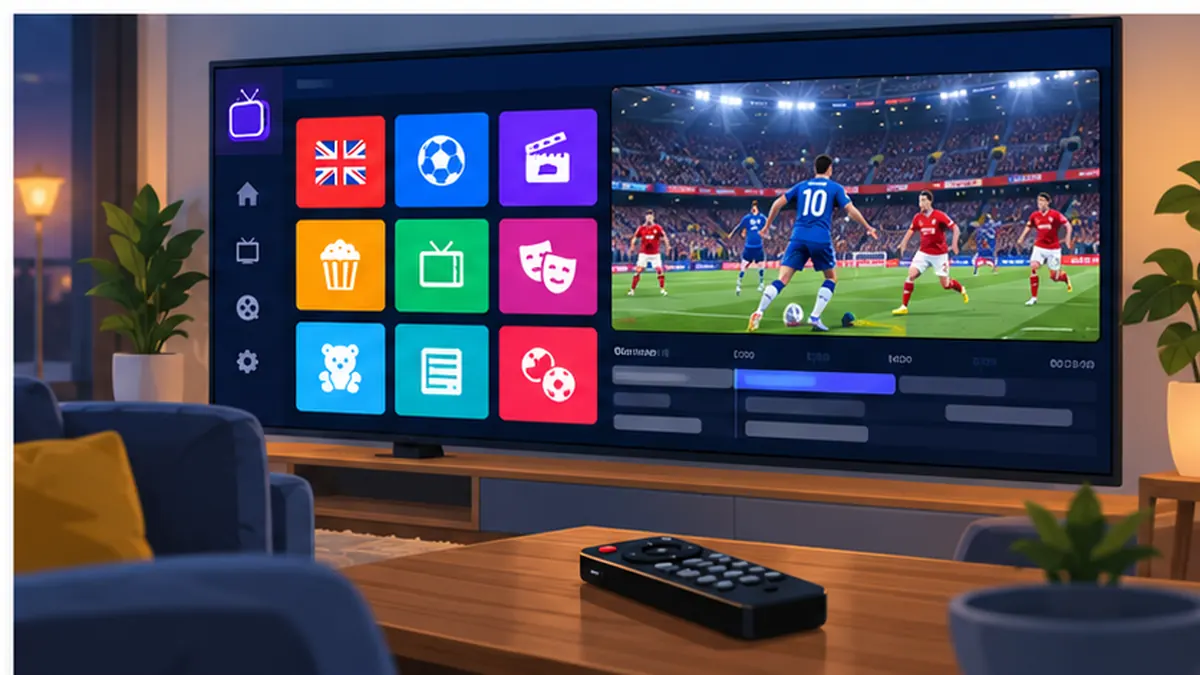
Smart IPTV (SIPTV) is the long-standing favourite for Smart TV IPTV on both brands. It is fast, supports M3U and Xtream playlists, has a clean EPG and handles large channel lists well. You activate it by entering the TV’s MAC address on the developer’s website. After a free trial period a small one-off fee applies; check the official site for the current price.
SS IPTV is a free Smart TV IPTV player with a slightly busier interface. It supports playlist upload through a short code shown on screen, which some users find easier than typing a MAC address. It is a good first choice if you want to test IPTV on your TV before spending anything.
IBO Player, Flix IPTV and Net IPTV work in a very similar way to Smart IPTV. Each has its own upload page, a short trial and then a modest fee. Their main advantage is that they are often still available in regions where one of the others has been temporarily removed from the store. For most people the choice of app comes down to what is in your TV’s store today and which interface you prefer.
If your television runs Android TV or Google TV rather than Tizen or webOS (for example many Sony, TCL, Philips and some Hisense models), you have access to a much wider range of players such as TiviMate and IPTV Smarters Pro. We cover those in our separate Android TV IPTV setup guide and IPTV Smarters Pro guide.
What you need before you start
A successful Smart TV IPTV setup needs four things in place before you touch the TV. Gathering them first avoids the most common frustration, which is getting half-way through and discovering a missing detail.
- Your subscription details. Your provider sends either an M3U playlist URL or Xtream Codes credentials (server URL, username, password). SmartVPro UK sends both so you can use whichever your chosen app supports. You can test the process first with a free IPTV trial.
- Your TV’s MAC address. Most Smart TV IPTV apps are activated by MAC address. You will find it in the network settings menu of the TV, or the app will display it on its welcome screen.
- A stable internet connection. Wired Ethernet is best. On Wi-Fi, 5 GHz is strongly preferred. We explain the numbers in our internet speed for IPTV guide.
- A second device for the upload step. A phone, tablet or laptop is used to visit the app developer’s website and submit your playlist against your MAC address.
One more tip: update the TV’s firmware before installing anything. Samsung and LG both push updates that change how the app store behaves, and an out-of-date TV is a frequent cause of apps failing to appear in search results.
How to set up Smart TV IPTV on a Samsung TV (Tizen)
Samsung televisions from 2016 onwards run Tizen, and the Smart TV IPTV process is the same across the range, from entry-level Crystal UHD models to Neo QLED and OLED sets. Here is the full process.
- Press the Home button on the remote and open Apps.
- Use the search icon to look for Smart IPTV, SS IPTV or IBO Player. Install the one you prefer.
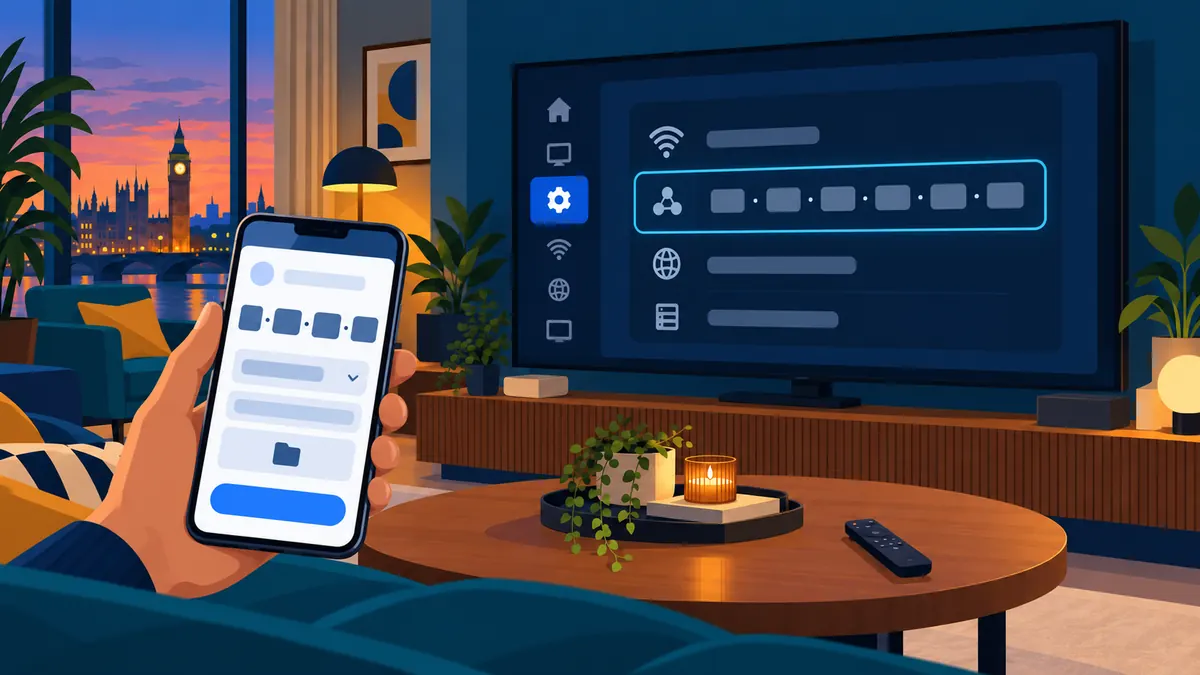
- Open the app. On the first screen it displays the TV’s MAC address. Write it down exactly, including the colons.
- On a phone or laptop, go to the app developer’s upload page (for Smart IPTV this is siptv.eu/mylist).
- Enter the MAC address, paste your M3U URL or Xtream details, and submit. The page confirms the upload.
- Back on the TV, close and reopen the app, or press the refresh option. Your channel list loads within a minute.
- Open the settings inside the app to enable the EPG, set your preferred language and adjust the channel sorting.
Finding the MAC address on a Samsung TV
If the app does not show it, go to Settings > General > Network > Network Status > IP Settings on most models, or Settings > Support > About This TV on newer sets. Note that Samsung TVs have separate MAC addresses for Wi-Fi and wired Ethernet. The Smart TV IPTV app uses whichever connection is active, so if you switch from Wi-Fi to a cable later, you will need to upload the playlist again against the new address.
Samsung-specific points
Some Samsung regions have periodically removed one or two Smart TV IPTV apps from the store. If an app has vanished, choose another from the list above rather than attempting to sideload, which Tizen does not support without developer mode and is not recommended for everyday use. Samsung publishes its platform documentation at developer.samsung.com/smarttv, which explains how Tizen apps are reviewed and distributed.
How to set up Smart TV IPTV on an LG TV (webOS)
LG televisions use webOS, and the Smart TV IPTV workflow is almost identical to Samsung. The main difference is the shape of the store and the location of the MAC address in the menus.
- Press the Home button and open the LG Content Store.
- Search for Smart IPTV, SS IPTV, IBO Player or Flix IPTV and install it.
- Launch the app and note the MAC address shown on the welcome screen.
- From another device, open the developer’s upload page and submit your playlist against that MAC address.
- Return to the TV, restart the app and wait for the channel list and EPG to populate.
- Add the app to your Quick Access or home ribbon so it opens with one press.
Finding the MAC address on an LG TV
Go to Settings > All Settings > Support > TV Information (or Network > Wi-Fi Connection > Advanced on older webOS versions). As with Samsung, wired and wireless adapters have different addresses. LG documents the webOS platform for developers at webostv.developer.lge.com.
webOS supports the Magic Remote pointer, and most Smart TV IPTV apps take advantage of it. Pointing and clicking makes navigating a 2,000-channel list far quicker than scrolling with arrow keys, so if your remote has the pointer feature, enable it in the app settings.
Smart TV IPTV on other brands: Sony, TCL, Hisense, Philips and Roku TV
Not every smart TV runs Tizen or webOS. The route to Smart TV IPTV depends on the operating system inside the set:
- Android TV / Google TV (Sony, TCL, Philips, many Hisense models): install TiviMate, IPTV Smarters Pro or OTT Navigator from Google Play. Full steps in our Android TV guide.
- Roku TV (some TCL and Hisense sets in the UK): Roku’s channel store has limited IPTV players. Most owners add a Fire TV Stick or Android box instead.
- Hisense VIDAA: a small number of IPTV apps appear in the VIDAA store; availability is inconsistent, so a streaming stick is the more reliable option.
- Philips / Titan OS and Saphi: newer Philips sets use Titan OS, which has a growing app library. Check the store first, then fall back to a stick if needed.
- Amazon Fire TV built in (some Toshiba, Xiaomi and Hisense sets): these behave exactly like a Fire TV Stick, with downloader-based installs available.
If your Smart TV IPTV options are limited, a Fire TV Stick 4K or a Google TV Streamer costs less than a single month of most satellite TV packages and unlocks every mainstream player.
MAC address activation and one-off app fees explained
New users are sometimes puzzled that a Smart TV IPTV app asks them to visit a website rather than typing details into the TV. The reason is practical. Typing a long M3U URL with an on-screen keyboard is slow and error-prone, so developers built a web page where you paste the playlist and link it to your TV’s unique MAC address. The TV then fetches the playlist from the developer’s server.
This also explains the small activation fees. Hosting the playlist link and serving the EPG costs the developer money, so after a free trial (typically seven days) most Smart TV IPTV apps ask for a one-off payment per MAC address. The fee is paid to the app developer, not to your IPTV provider, and it is separate from your subscription. SS IPTV remains free because it serves the playlist differently.
Two practical consequences follow. First, if you replace your TV, you will need to activate the app again for the new MAC address. Second, keep a note of which address you activated, because a TV with both Wi-Fi and Ethernet has two.
M3U vs Xtream Codes on a Smart TV
Your provider will usually offer both formats. On a Smart TV IPTV app the practical differences are small, but they matter when something goes wrong.
| Feature | M3U URL | Xtream Codes API |
|---|---|---|
| How you enter it | Paste one long link | Server, username, password |
| Channel list updates | When app refreshes the link | Live from the server |
| EPG | Separate XMLTV link often needed | Usually built in |
| Video on demand (VOD) | Depends on playlist | Full catalogue with categories |
| Best for | Smart IPTV, SS IPTV | IBO Player, Smarters, TiviMate |
If your Smart TV IPTV app supports Xtream Codes, use it. The EPG and VOD sections are more reliable and you do not have to re-upload a playlist when the provider adds channels. SmartVPro UK provides Xtream credentials with every IPTV plan, and the login details are the same ones you would use in IPTV Smarters or TiviMate on another device.
Internet and Wi-Fi requirements for Smart TV IPTV
Smart TV IPTV is sensitive to connection quality rather than raw speed. A 30 Mbps connection with low latency and no packet loss will outperform a 300 Mbps connection on a congested 2.4 GHz Wi-Fi network. Ofcom’s broadband speed guidance is a useful reference for what UK providers must deliver.
- SD channels: 5 to 8 Mbps per stream
- HD (1080p) channels: 10 to 16 Mbps per stream
- 4K channels: 25 to 40 Mbps per stream
- Recommended minimum: 25 Mbps for one TV, more for multiple screens
Where possible, run an Ethernet cable from the router to the TV. Nearly every Samsung and LG set has a LAN port on the back. If the TV is far from the router, a pair of powerline adapters or a mesh Wi-Fi node placed near the TV gives a far more stable Smart TV IPTV experience than relying on a single router at the other end of the house. The full breakdown is in our internet speed for IPTV guide.
Common Smart TV IPTV problems and fixes
Channels buffer or freeze
The usual cause is Wi-Fi, not the service. Switch to Ethernet or 5 GHz, move the router, or restart it. Inside the app, look for a buffer setting and increase it slightly. If buffering happens only on one channel, that stream is the problem; try an alternative feed of the same channel.
Playlist will not load
Double-check the MAC address, including whether you uploaded against the Wi-Fi or Ethernet adapter. Confirm the M3U link or Xtream details were pasted with no trailing spaces. If the app shows an expiry message, the app’s activation (not your subscription) may have lapsed.
EPG is empty or out of date
With an M3U playlist, add the XMLTV EPG link in the app settings. With Xtream, choose the refresh EPG option. Make sure the TV’s time zone is set to London, because an incorrect clock shifts every programme by hours. See our IPTV EPG guide for a deeper walkthrough.
App missing from the store
Apps come and go from the Samsung and LG stores. Try the alternatives in the table above. Changing the TV’s region in settings can also reveal apps, but it may affect other services, so note the original region first.
No sound, wrong audio track or lip-sync drift
Most Smart TV IPTV apps let you choose the audio track; select the English stereo track if a Dolby track plays silently. For lip-sync, toggle the TV’s audio delay setting or switch the app’s decoder from hardware to software.
4K channels will not play
Older Smart TV IPTV players decode on the TV’s processor, and some 2016 to 2018 sets struggle with high-bitrate HEVC streams. Try a different app, lower the stream quality if your provider offers it, or move 4K viewing to a modern streaming stick.
Smart TV IPTV app vs Fire TV Stick vs Android box
Should you use the built-in Smart TV IPTV app or add a device? Each option has trade-offs.
| Factor | Smart TV IPTV app | Fire TV Stick | Android TV box |
|---|---|---|---|
| Extra cost | None (plus small app fee) | From around £35 | From around £40 |
| App choice | Limited to store | Wide, including sideloaded | Widest |
| Performance | Depends on TV age | Good | Best on quality boxes |
| Remote experience | One remote | Second remote | Second remote |
| Recording / catch-up | Rarely supported | Supported in TiviMate | Supported |
| Best for | Simplicity, newer TVs | Flexibility on any TV | Power users, 4K-heavy use |
Our honest view: on a Samsung or LG set from 2019 or later, the native app is the best starting point. If you find yourself wanting catch-up recording, multiple profiles or a richer interface, add a stick later. Nothing is lost, because your SmartVPro UK login works on both.
Using Smart TV IPTV on more than one television
Each Smart TV IPTV app installation is tied to one MAC address, but your subscription can usually run on several devices depending on the plan you choose. If you have a Samsung in the lounge and an LG in the bedroom, activate the app on each and use the same playlist. Check the connection limit on your plan first, because two streams playing at once count as two connections. Our multi-device IPTV guide covers the details, including how to share one subscription across a TV, a phone and a tablet.
Is Smart TV IPTV legal in the UK?
The technology is entirely legal. Smart TV IPTV apps are ordinary media players, and the Samsung and LG stores list them openly. What matters is the content you stream through them. Watching channels that the provider is entitled to distribute is lawful; watching streams that infringe copyright is not, and UK enforcement bodies have taken action against both sellers and, in some cases, users of infringing services.
We do not offer legal advice and nothing here is a guarantee about any particular service. Our detailed guide, Is IPTV legal in the UK?, explains the Copyright, Designs and Patents Act 1988 (available on legislation.gov.uk), the role of Ofcom and the position taken by the Federation Against Copyright Theft (FACT). SmartVPro UK is a brand operated by THE SHORT BOX ENTERTAINMENT LLC; our terms, correspondence address and legal notice are published on this site.
Smart TV IPTV outside the UK
Smart TV IPTV works the same way in every country, because the apps and the TV operating systems are global. What changes is the channel line-up and the local provider. If you are reading from abroad, or you split time between countries, these sister services follow the same setup steps described above: iptvv-ca.ca for Canadian viewers, dutchiptvnl.net for the Netherlands, and smartvpro.com for international customers. UK travellers who want to keep their home channels while away should also read our IPTV VPN guide.
Official developer and regulator resources
- Samsung Smart TV developer portal — how Tizen apps are built, reviewed and published.
- LG webOS TV developer site — platform documentation for LG televisions.
- Smart IPTV official site — playlist upload page and activation details.
- Ofcom — the UK communications regulator, including broadband speed and TV licensing guidance.
- Copyright, Designs and Patents Act 1988 — the primary UK legislation on copyright.
Smart TV IPTV: frequently asked questions
Which Smart TV IPTV app is best for Samsung?
Smart IPTV (SIPTV) is the most widely used Smart TV IPTV app on Samsung Tizen sets because it is fast, supports both M3U and Xtream playlists and has a reliable EPG. If it is not in your store, IBO Player or SS IPTV are strong alternatives.
Do I need a box or Fire Stick to use IPTV on a smart TV?
No. On Samsung and LG televisions you can install a Smart TV IPTV app directly from the app store and watch without any extra hardware. A stick is only needed if your TV’s store has no IPTV players or if you want advanced features such as recording.
Why does the app ask me to upload my playlist on a website?
Most Smart TV IPTV apps are activated by MAC address. You enter the TV’s MAC address and your playlist on the developer’s site, and the TV then downloads the playlist. This avoids typing long links with the TV remote.
Is there a fee for Smart TV IPTV apps?
Some apps, including Smart IPTV, IBO Player and Flix IPTV, charge a small one-off activation fee per TV after a free trial. SS IPTV is free. These fees go to the app developer and are separate from your IPTV subscription.
What internet speed do I need for Smart TV IPTV?
Around 10 to 16 Mbps per HD stream and 25 to 40 Mbps for 4K. A wired Ethernet connection or 5 GHz Wi-Fi close to the router matters more than headline speed.
Can I use the same subscription on my phone and my smart TV?
Yes, within the connection limit of your plan. The same Xtream Codes login works in a Smart TV IPTV app, IPTV Smarters on a phone and TiviMate on a Fire Stick. Each stream playing at the same time uses one connection.
Why did my channels stop working after I moved the TV?
If you switched from Wi-Fi to an Ethernet cable (or the reverse), the TV is now using a different MAC address. Upload your playlist again against the new address and the channels will return.
Is Smart TV IPTV legal in the UK?
The apps and the technology are legal. Whether a specific service is lawful depends on whether it has the rights to the content it streams. We cannot offer legal guarantees; our legal guide explains the UK position in detail.
Ready to try Smart TV IPTV?
If you have a Samsung or LG television and a decent broadband connection, you can be watching within fifteen minutes. Start with a free IPTV trial to test the Smart TV IPTV app of your choice, then pick the IPTV plan that matches the number of screens in your home. Our support team can walk you through the MAC upload step if anything is unclear.
Get the next IPTV guide by email
New setup guides, app comparisons and buffering fixes for UK viewers – about two emails a month, no spam, unsubscribe in one click.