
Quick answer: For a Formuler IPTV setup, connect the box to your TV and router, open MYTVOnline (MYTVOnline 3 on the Z11 Pro and Z11 Pro Max, MYTVOnline 2 on most older models), then add your provider’s connection: a portal URL linked to the box’s MAC address, an Xtream Codes login, or an M3U link, depending on what your provider and app version support. On a BuzzTV box, open the pre-installed BuzzTV app and add your Xtream Codes or M3U details. Both brands are dedicated IPTV boxes, so the setup normally takes under 15 minutes.
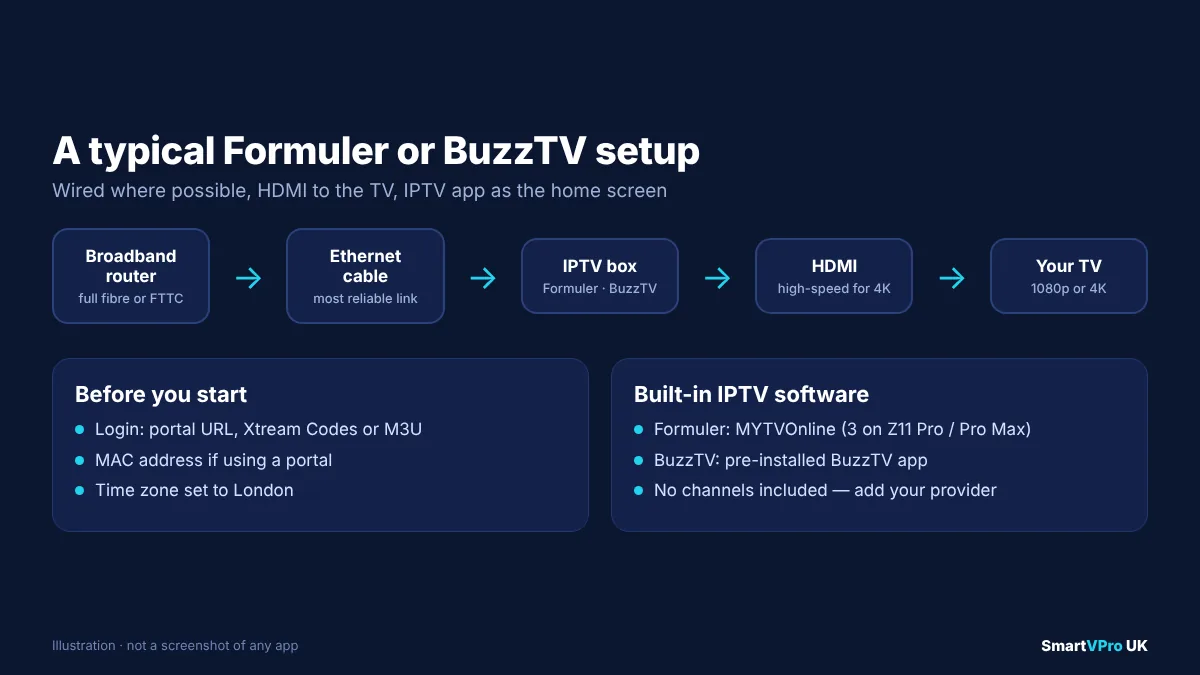
Formuler and BuzzTV make Android-based set-top boxes built specifically for IPTV. Unlike a Fire TV Stick, which is a general streaming device with IPTV apps added later, these boxes ship with their own IPTV software, physical Ethernet ports, and remotes laid out like a traditional TV box. That makes them popular with UK viewers who want IPTV to feel like Sky or Virgin Media rather than “another app”.
This guide explains the main models, how MYTVOnline and the BuzzTV app work, step-by-step setup for each login type, the settings worth changing, and how to fix the problems that come up most often.
Table of Contents
What are Formuler and BuzzTV boxes?
Both brands sell Android-based media players designed around live TV. They do not include any channels themselves. You add a subscription from an IPTV provider, and the box’s built-in software turns it into a channel list, a TV guide and an on-demand library.
Formuler is best known for its Z-series boxes and its MYTVOnline software, which together are what most people mean by “Formuler IPTV”. The current flagship, the Formuler Z11 Pro Max, runs Android 11 on a Realtek RTD1319C processor with 4 GB of RAM, 32 GB of storage, Wi-Fi 6, Gigabit Ethernet and Bluetooth 5.0, and supports 4K output with HDR10+ and HLG, according to Formuler’s specification page. Formuler says MYTVOnline 3 is available exclusively on the Z11 Pro Max and Z11 Pro.
BuzzTV makes a wider range of boxes and sticks, all built around its own BuzzTV app, which comes pre-installed on current models. The range includes the X5 series, the U5 with a drive bay for local storage, the newer Classic AI and G-Series, the high-end P6 PowerStation and the HD5 stick, based on the line-up listed by retailer androidtvbox.eu.
Formuler vs BuzzTV vs Fire TV Stick at a glance
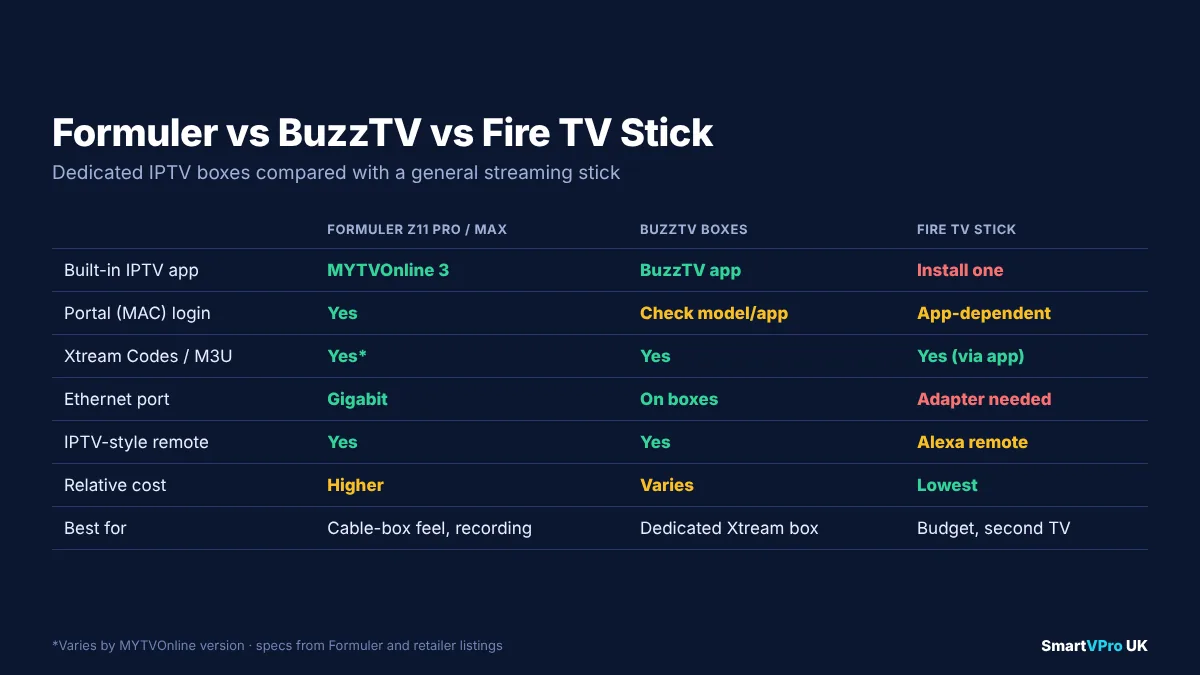
| Formuler (Z11 Pro / Pro Max) | BuzzTV (X5, U5, Classic AI and others) | Fire TV Stick 4K / 4K Max | |
|---|---|---|---|
| Built-in IPTV app | MYTVOnline 3 | BuzzTV app | None; install an app such as TiviMate or IPTV Smarters |
| Login types | Portal (MAC), Xtream Codes, M3U (varies by version) | Xtream Codes and M3U | Depends on the app you install |
| Ethernet port | Yes, Gigabit | Yes on boxes; sticks rely on Wi-Fi | No; needs an adapter |
| Remote | IPTV-focused, programmable keys on BT editions | IPTV-focused with guide and colour keys | Alexa voice remote |
| Typical cost | Higher than a stick | Varies widely by model | Lowest of the three |
| Best for | A cable-box feel, portal users, recording | Xtream users who want a dedicated box | Budget setups, multiple TVs, travel |
Is a Formuler or BuzzTV box better than a Fire TV Stick?
It depends on what you value. A Fire TV Stick is cheaper, small enough to hide behind the TV, and runs every major IPTV player. For many people it is all they need, and our Firestick IPTV setup guide covers it in full.
A dedicated box earns its price in three situations:
- You want a wired connection. Formuler boxes and most BuzzTV boxes have a built-in Ethernet port. A wired connection usually removes the drop-outs that Wi-Fi causes during busy evenings and weekend football.
- You want the IPTV software to be the main interface. On these boxes, the channel list and guide are the home screen, not one app among many. Family members who are used to a traditional TV box tend to find this easier.
- You use a portal (MAC) login. Formuler’s MYTVOnline is one of the few mainstream apps built around Stalker portals. If your provider favours portals, a Formuler box is the natural choice.
Technically, all three are OTT devices that stream over your broadband; our guide to IPTV vs OTT explains what that means in practice.
The trade-offs are higher cost and a smaller choice of streaming apps than a Fire TV or Google TV device offers. Check that the apps you rely on outside IPTV, such as BBC iPlayer, ITVX or Netflix, are available and supported on the specific model before you buy.
What you need before you start
Gather these before you begin and the setup will take minutes rather than an evening:
- The box, its remote and power adapter.
- An HDMI cable. Use a high-speed cable if you want 4K.
- A broadband connection. Netflix recommends a steady 15 Mbps for 4K and 5 Mbps for Full HD; live IPTV benefits from similar headroom per stream. See our internet speed for IPTV guide.
- An Ethernet cable if your router is close enough, or Wi-Fi details if not.
- Your IPTV login details. These will be one or more of: a portal URL (often ending in
/c/), an Xtream Codes login (server URL, username and password), or an M3U link. If you are unsure which is which, our Xtream Codes vs M3U guide explains each format. - Your box’s MAC address, if you will use a portal. You will find it in the box’s settings and usually on a label underneath.
Formuler IPTV setup: step by step
Step 1: connect and switch on
- Connect the box to your TV with the HDMI cable.
- Plug an Ethernet cable from the router into the box’s LAN port, if possible.
- Connect the power adapter. The box starts up and shows Formuler’s first-run screens.
- Choose your language, connect to Wi-Fi if you are not using Ethernet, and set the time zone to London. The time zone matters more than most people realise: if it is wrong, the TV guide will be an hour out.
- Install any system updates offered. Updating before you add your IPTV service avoids problems later.
Step 2: find your MAC address (portal users only)
If your provider uses a portal, open the box’s Settings, then About or Network, and note the MAC address. Formuler devices can have separate addresses for Ethernet and Wi-Fi, and MYTVOnline also shows the MAC address it uses on its own setup screens. Send your provider the address MYTVOnline displays, and wait for confirmation that it has been registered.
Step 3: add your connection in MYTVOnline

Open MYTVOnline from the home screen. The exact menu names differ between MYTVOnline 2 and 3 and between firmware updates, but the order of steps is the same:
- Go to the connection, server or portal settings (on first launch, MYTVOnline usually opens the “add connection” screen automatically).
- Choose the connection type your provider gave you:
- Portal: enter a name (for example “Living room”) and the portal URL exactly as supplied, including
http://, the port number and the/c/ending if provided. - Xtream Codes: enter the server URL, username and password.
- M3U: paste the full M3U link. If there is a separate field for an EPG or XMLTV link, add it too.
- Save and return to the main screen. MYTVOnline downloads the channel list, categories and guide.
- Open Live TV and press the Guide or EPG button to check programme listings are showing.
Typing long addresses with a remote is slow. If your model supports a USB keyboard or a phone remote app, use it, and double-check every character before saving.
Step 4: arrange channels and favourites
MYTVOnline lets you hide categories you never watch, create favourite groups and re-order channels. Spend five minutes here: hiding unused international categories makes the guide faster to scroll and easier for everyone in the house to use. On MYTVOnline 3, Formuler says you can also pin favourite groups to the top of the list and use universal search.
Step 5: try the extra MYTVOnline 3 features
On the Z11 Pro and Z11 Pro Max, MYTVOnline 3 adds features that make the box feel like a full PVR. Formuler’s feature page lists:
- Multi-view, watching two live channels on screen at once.
- Picture-in-picture, keeping one programme in a corner while browsing.
- Recording and scheduled recording, saving programmes to storage.
- Timeshift, pausing and rewinding live TV.
- A sports hub (“Game Day”) with schedules, results and reminders for followed teams.
- Backup and restore of settings to external storage.
Recording and timeshift depend on your provider allowing them and on having storage available, so check both before relying on them.
How to set up a BuzzTV box for IPTV
Step 1: connect and complete first-run setup
- Connect the box to the TV by HDMI and, ideally, to the router by Ethernet.
- Power it on and follow the on-screen setup: language, network and time zone (London).
- Install any firmware and BuzzTV app updates the box offers.
Step 2: open the BuzzTV app and add your account
The BuzzTV app is pre-installed on current models and opens as the main TV interface.
- Open the BuzzTV app and choose the option to add a service, account or playlist.
- Select Xtream Codes if your provider supplied a server URL, username and password, or M3U if you have a playlist link.
- Enter the details exactly as supplied. For Xtream Codes, include
http://and the port number in the server URL. - Save and allow the app a minute or two to load channels, films, series and the guide.
- Open the guide to confirm listings are showing.
If the app version on your box offers additional connection types, the same principle applies: use the format your provider recommends for that app.
Step 3: set up favourites and parental controls
Create a favourites list for the channels your household watches most, and set a parental PIN for adult or late-night categories. Most dedicated IPTV boxes let you lock individual categories as well as single channels.
Best settings for smooth IPTV playback
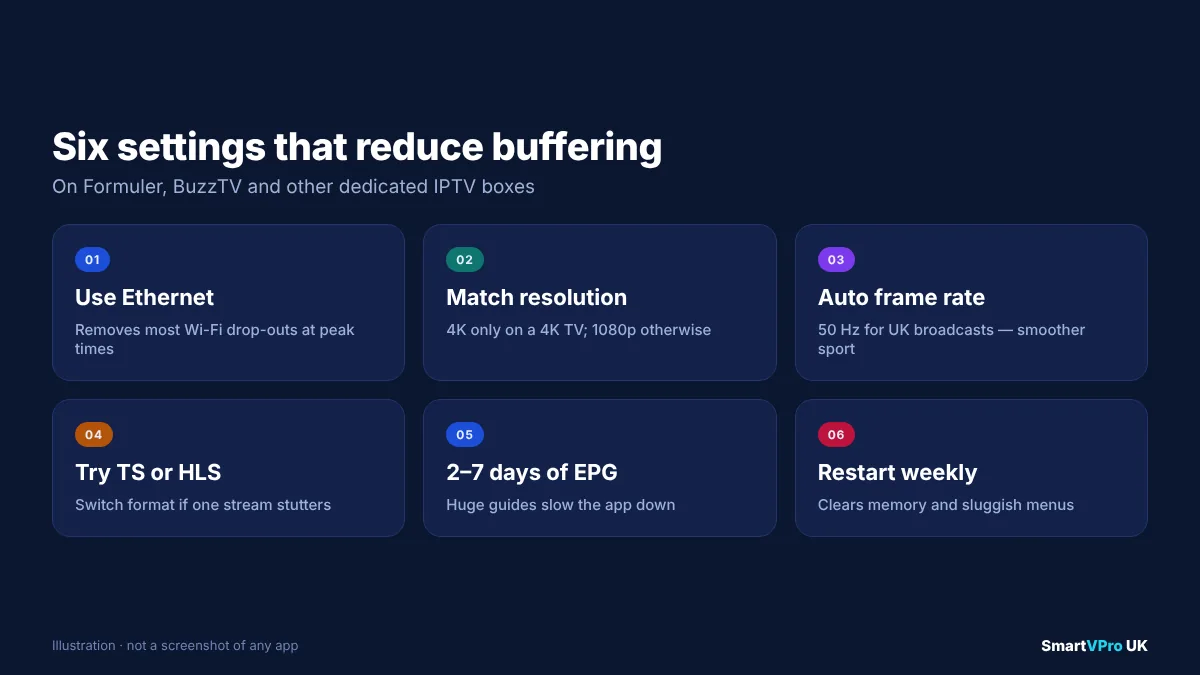
These settings make the biggest difference on both brands:
- Use Ethernet where you can. A wired connection is the single most effective fix for buffering at busy times.
- Match the output resolution to your TV. Set the box to 4K only if your TV is 4K. On a 1080p TV, choose 1080p to avoid unnecessary processing.
- Turn on auto frame rate (if offered). Matching the TV’s refresh rate to the stream (for example 50 Hz for UK broadcasts) gives smoother motion, especially for sport.
- Pick the right stream format. Some IPTV services offer both TS and HLS streams. If one stutters, try the other in the app’s player or account settings.
- Keep the guide window sensible. Loading 14 days of EPG for thousands of channels slows the app down. Two to seven days is usually plenty.
- Restart weekly. These are small computers. A restart clears memory and often fixes sluggish menus.
For deeper network fixes, including DNS changes and router placement, see our IPTV buffering guide.
Troubleshooting common Formuler and BuzzTV problems
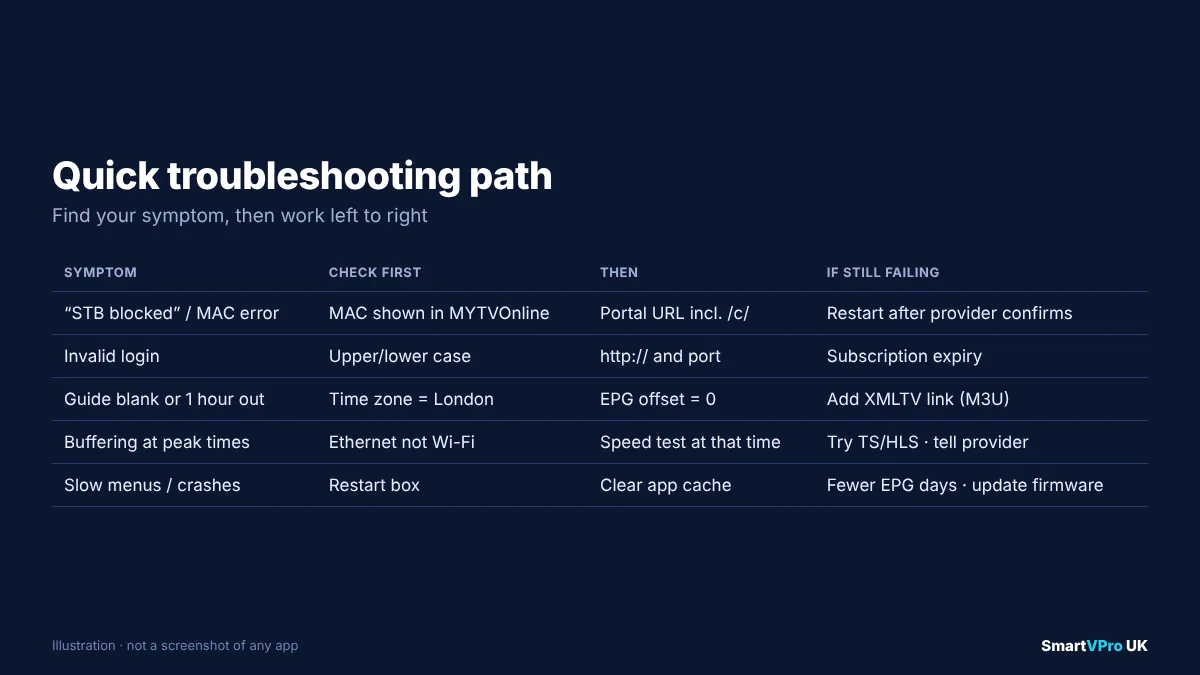
“STB blocked”, “MAC not registered” or the portal will not load
- Confirm the provider has activated the exact MAC address shown in MYTVOnline, not a different address from another settings screen.
- Check the portal URL character by character, including the port and the
/c/ending. - Restart the box after the provider confirms activation.
“Invalid login” on Xtream Codes
- Check upper and lower case in the username and password.
- Look out for confusable characters such as
0andO, orland1. - Make sure the server URL starts with
http://and includes the port number if your provider supplied one. - Confirm the subscription or trial has not expired.
Channels play but the guide is blank or an hour out
- Set the box’s time zone to London and the app’s EPG time offset to zero.
- If you used an M3U link, add the provider’s XMLTV EPG link.
- Force an EPG update in the app settings and give it a few minutes.
Our IPTV EPG guide covers each fix in more detail.
Buffering in the evening or during big matches
- Switch from Wi-Fi to Ethernet, or move the router closer.
- Test your speed on the box at the time the problem happens, not in the morning.
- Close other heavy uses of the connection, such as large downloads or game updates.
- Try the alternative stream format (TS or HLS).
- If buffering only affects certain channels, tell your provider which ones and when.
The box is slow or apps crash
- Restart the box.
- Clear the IPTV app’s cache in Android settings (not its data, unless you are ready to re-enter your login).
- Reduce the number of EPG days loaded.
- Install the latest firmware.
Can you use other IPTV apps on these boxes?
Yes, in most cases. Both brands run Android, so you can usually install other IPTV players, such as TiviMate or IPTV Smarters Pro, alongside the built-in software, subject to what your model’s app store allows. Many owners keep MYTVOnline for the portal connection and add TiviMate with the Xtream Codes login so they can compare. Our guides to TiviMate, IPTV Smarters Pro and the best IPTV player apps explain the differences.
Remember that each app that is streaming counts as a connection. If you leave MYTVOnline playing in the background and start TiviMate, you may hit your plan’s connection limit.
Using a Formuler or BuzzTV box on more than one TV
A portal login is tied to one MAC address, so a second Formuler box needs its own activation, and usually its own connection on your plan. Xtream Codes and M3U logins can be entered on several devices, but your plan still limits how many can stream at once. If you want IPTV in the living room, bedroom and kitchen, our multi-device IPTV guide explains how connection limits and multi-screen plans work.
Formuler vs MAG box: what is the difference?
MAG boxes, made by Infomir, were among the first set-top boxes built for IPTV, and many long-standing UK IPTV users still own one. Both MAG and Formuler boxes handle Stalker portal logins well, so the two are often compared.
| Formuler (Z11 Pro / Pro Max) | MAG box | |
|---|---|---|
| Operating system | Android 11, with MYTVOnline on top | Infomir’s own Linux-based software on many models; some newer models run Android |
| Login types | Portal, Xtream Codes, M3U (depending on app version) | Portal-first; other formats vary by model |
| Extra apps | Android apps can usually be installed | Limited on Linux-based models |
| Interface | MYTVOnline’s own guide, plus Android home screen | The provider’s portal interface |
| Best for | Users who want portal support plus flexibility | Users who only need a simple portal box |
In practice, a Formuler box offers more flexibility because it can run MYTVOnline and other Android apps side by side. A MAG box is simpler and does one job. If your provider only offers Xtream Codes or M3U, a MAG box loses most of its advantage, so check the formats your provider supports first. Our Xtream Codes vs M3U vs Stalker Portal guide explains how portals differ from the other two login types.
Recording and storage: what to plan for
Recording is one of the main reasons people choose a dedicated box, but it only works if three things line up:
- Your provider allows it. Some services restrict recording or timeshift on certain channels. Check before you rely on it.
- You have enough storage. The Z11 Pro Max has 32 GB of internal storage, much of which is used by the system and apps. For regular recording, attach a USB drive or, on BuzzTV models with a drive bay such as the U5, fit an internal drive. As a rough guide, an hour of HD sport can take a few gigabytes, and 4K far more, depending on the stream’s bitrate.
- The drive is formatted correctly. Use the box’s own storage settings to format a new drive, rather than formatting it on a computer. This avoids file-system errors that stop recordings starting.
Scheduled recordings also depend on an accurate TV guide. If the EPG is an hour out, a scheduled recording will be too, so fix the time zone before you set up a series of recordings.
Remote control tips that save time
Both brands supply remotes designed for live TV, and a few features are easy to miss:
- Guide and colour keys. The coloured buttons usually jump straight to functions such as favourites, the guide or search, saving several menu presses.
- Programmable hotkeys. Formuler’s Bluetooth remote on BT editions supports programmable keys, according to Formuler’s Z11 Pro Max page. Set one to open MYTVOnline and another to your most-watched channel group.
- TV control. Some remotes can learn or control your TV’s power and volume, so you need only one remote on the coffee table.
- Phone keyboard. Typing a portal URL or password with arrow keys is tedious. A USB keyboard, or a phone remote app if your model supports one, cuts the setup time dramatically.
- Pairing problems. If a Bluetooth remote stops responding, remove and refit the batteries, then re-pair it from the box’s Bluetooth settings using a USB keyboard or the box’s buttons.
Moving from a Fire TV Stick to a Formuler or BuzzTV box
Many people buy a dedicated box after a year or two on a streaming stick. The switch is straightforward if you plan it:
- Note your current login details. Find the Xtream Codes or M3U details in your provider’s welcome email, not just in the app on the stick. If you only have them inside an app, ask your provider to resend them.
- Decide which login type to use on the new box. If your provider offers a portal and you have bought a Formuler, the portal gives the most native MYTVOnline experience. Otherwise use Xtream Codes.
- Check your connection limit. If you plan to keep the stick on another TV, make sure your plan allows two simultaneous streams.
- Recreate your favourites. Favourites lists do not usually transfer between apps, so set aside ten minutes to rebuild them.
- Move the stick, do not bin it. A Fire TV Stick makes a good second-room or travel device once the box takes over the main TV.
If you use a portal, remember that the provider needs the new box’s MAC address before it will work, so send it before you unplug the old setup.
Which model should you choose?
Rather than chasing the newest box, match the device to how you watch:
- You want the most “cable-box” experience, recording and multi-view: a Formuler Z11 Pro or Z11 Pro Max with MYTVOnline 3.
- Your provider uses portals: Formuler, because MYTVOnline is built around portal logins.
- You use Xtream Codes and want a dedicated box with Ethernet: a BuzzTV box from the current range, chosen by budget and storage needs.
- You want a small device for a second TV or travel: a stick, either BuzzTV’s or a Fire TV Stick, accepting that you will rely on Wi-Fi.
- You mainly watch Netflix, iPlayer and other mainstream apps, with IPTV as an extra: a Google TV or Fire TV device may suit you better, with an IPTV player installed.
Whatever you buy, check that the seller is reputable and that the box is a genuine branded unit. Unofficial clones and “pre-loaded” boxes sold with services already configured are a common source of problems.
A note on content and legality
Formuler and BuzzTV boxes, MYTVOnline and the BuzzTV app are legal products. They are media players, and they do not come with channels. What matters is the service you connect to them. In the UK, copyright law, including the Copyright, Designs and Patents Act 1988, protects broadcasts, and accessing content without permission from the rights holder can carry legal risk. Our guide to IPTV and the law in the UK explains what to check before you subscribe to any provider.
Test your box before committing
The best way to judge a box and a service together is to test them at the times you actually watch, on your own broadband. SmartVPro sends Xtream Codes and M3U details that work in MYTVOnline, the BuzzTV app and other compatible players, and you can try the service with a 24-hour trial before choosing one of the IPTV plans. If anything does not load, our support team can help over WhatsApp.
Frequently asked questions
Which Formuler box is best for IPTV?
The Formuler Z11 Pro Max is the current flagship. It runs Android 11 with 4 GB of RAM, 32 GB of storage, Wi-Fi 6 and Gigabit Ethernet, and Formuler says MYTVOnline 3 is available exclusively on the Z11 Pro Max and Z11 Pro.
What is MYTVOnline?
MYTVOnline is Formuler’s IPTV app. It turns your provider’s portal, Xtream Codes or M3U details into a channel list, TV guide and on-demand library. MYTVOnline 3, on the Z11 Pro and Pro Max, adds multi-view, picture-in-picture, recording, timeshift and a sports hub.
Is a Formuler box better than a Firestick?
A Formuler box is better if you want a wired Ethernet connection, a cable-box style interface or a portal login. A Fire TV Stick is cheaper and runs all the main IPTV apps, so it is often the better choice for a second TV or a tight budget.
Do Formuler and BuzzTV boxes come with channels?
No. They are media players. You need a subscription from an IPTV provider, which gives you a portal URL, an Xtream Codes login or an M3U link to enter in the box’s app.
Can I use TiviMate on a Formuler or BuzzTV box?
Usually, yes. Both run Android, so most models can install other IPTV players alongside the built-in app. Each app that is streaming counts as a connection on your plan.
Why is my MYTVOnline guide an hour out?
The box’s time zone is probably wrong, or the app has an EPG time offset. Set the time zone to London and the EPG offset to zero, then refresh the guide.
What does “STB blocked” mean on a Formuler box?
It usually means the portal has not recognised your box’s MAC address. Check that your provider registered the exact MAC address shown in MYTVOnline, and that the portal URL is entered correctly.
Are Formuler and BuzzTV boxes legal in the UK?
Yes. The boxes and their apps are legal media players. Legality depends on the service you connect them to and whether it has permission to distribute the content.
Sources and further reading
- Formuler Z11 Pro Max specifications, Formuler.
- MYTVOnline 3 features, Formuler.
- MYTVOnline video tutorials, Formuler.
- BuzzTV range overview, androidtvbox.eu.
- Internet connection speed recommendations, Netflix Help Centre.
- Copyright, Designs and Patents Act 1988, legislation.gov.uk.
Get the next IPTV guide by email
New setup guides, app comparisons and buffering fixes for UK viewers – about two emails a month, no spam, unsubscribe in one click.